The invoice is already digital. Why are you typing it again?
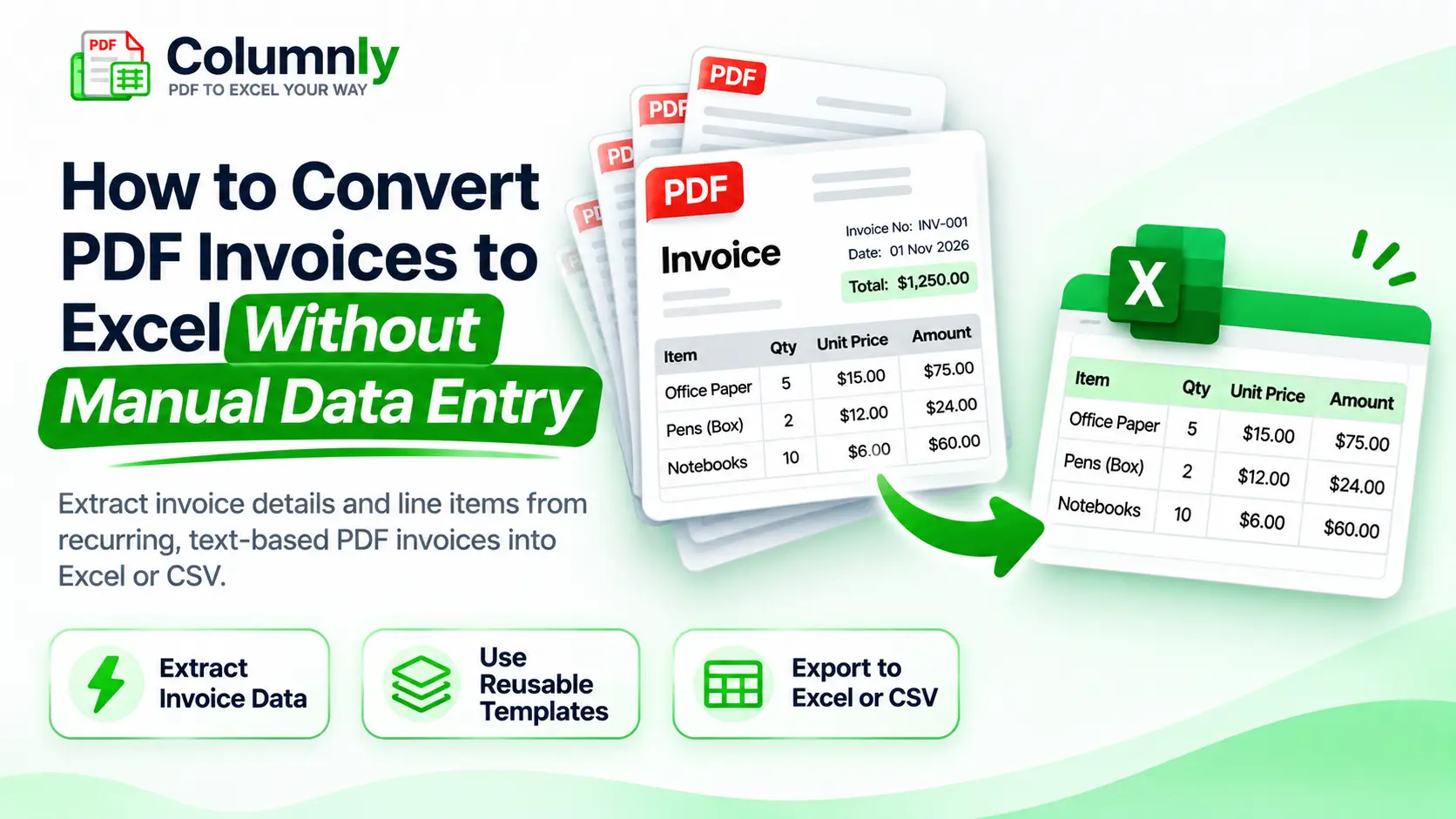
A supplier sends you a PDF invoice.
You can clearly see the invoice number, date, amounts and item descriptions.
But the information you need is trapped inside the document.
So you open Excel and start copying.
Invoice number. Date. Supplier. Total.
Then you repeat the process for the next invoice.
The information already exists. You're simply moving it from one digital format into another.
For accountants, bookkeepers and small business owners, this repetitive work can become a regular source of frustration.
Fortunately, text-based PDF invoices can often be converted into structured Excel data without manually retyping every value.
What information can you extract from a PDF invoice?
Depending on the invoice structure, you might want:
| Invoice field | Example |
|---|---|
| Invoice number | INV-1048 |
| Invoice date | 15 November 2026 |
| Supplier | Example Supplies Pty Ltd |
| Total amount | $748.50 |
| Item description | Office supplies |
| Quantity | 5 |
| Unit price | $149.70 |
You may need only the invoice header information, or you may also want every line item.
The important distinction is between copying the entire PDF and extracting the specific information your workflow requires.
Method 1: Copy and paste manually
For a single simple invoice, copying information manually may be perfectly reasonable.
But manual copying becomes increasingly inefficient when:
- You process invoices regularly.
- You need many fields from each invoice.
- Invoices contain multi-row tables.
- You want consistent spreadsheet columns.
- You receive repeated invoices from the same suppliers.
That's when reusable extraction becomes valuable.
Method 2: Use PDF invoice extraction software
Columnly provides a visual way to select specific invoice data and export it to Excel.
Rather than converting every element of the document, you choose the information relevant to your work.
Step 1: Open your PDF invoice
Import a text-based invoice into Columnly.
Step 2: Identify the invoice fields
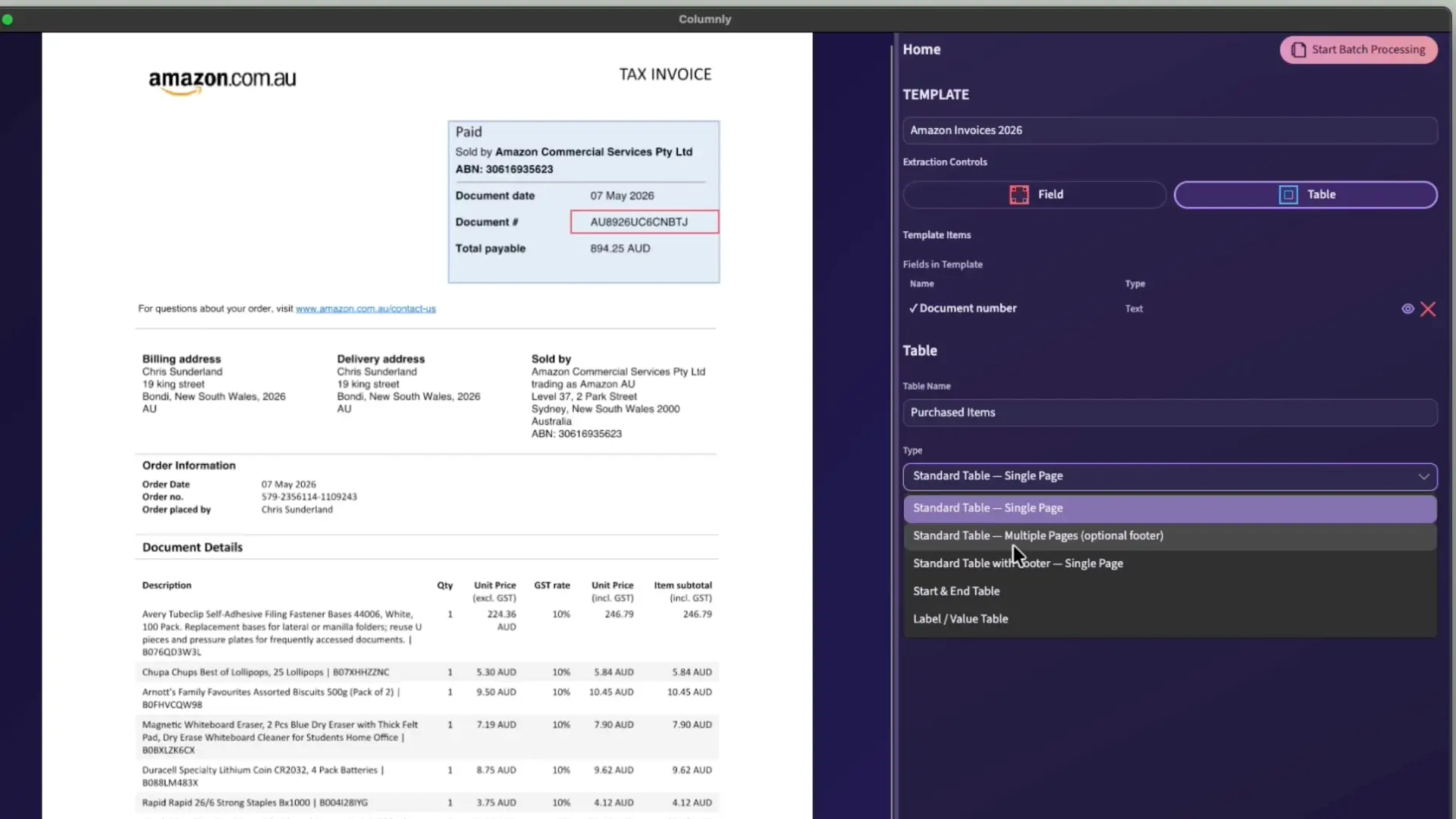
Select the invoice number, date, supplier details, total amount or other fields you need.
Step 3: Select invoice line items
If your invoice contains an itemised table, configure the table extraction to capture the relevant rows and columns.
Step 4: Save the template
Store your extraction settings for reuse with similar invoices.
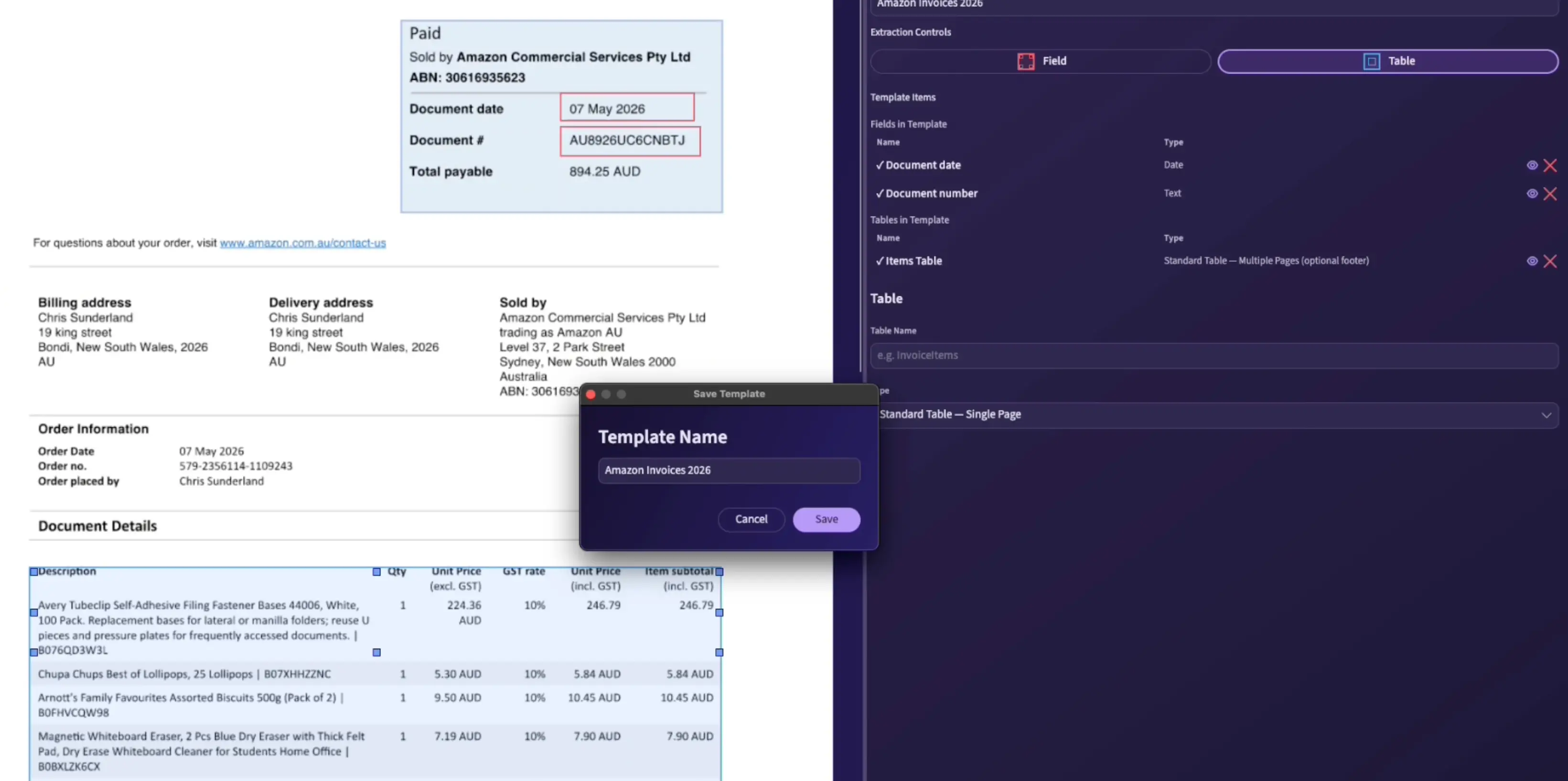
Step 5: Process additional invoices
Apply the saved template to compatible invoices from the same supplier or document format.
Step 6: Export to Excel
Export the extracted values to an Excel spreadsheet or CSV file.
You can then review the output, perform calculations or use the data in your existing financial workflow.
What if invoices come from different suppliers?
Not every supplier uses the same invoice layout.
A template configured for one supplier may not work correctly for another.
Columnly's reusable templates are intended for documents with similar structures.
For different invoice formats, create appropriate configurations rather than assuming one template will understand every invoice automatically.
This is one of the important differences between template-based extraction and AI-powered document processing.
What about privacy?
Invoices may contain customer names, addresses, financial amounts and other commercially sensitive information.
Columnly performs PDF extraction locally on your computer.
There's no need to upload your invoices to an online conversion service.
For businesses that prefer to keep their documents under their own control, this can be an important advantage.
Can Columnly extract scanned invoices?
Not currently.
Columnly supports text-based PDFs where the document contains extractable text.
A scanned invoice is essentially an image embedded in a PDF. Extracting its content requires optical character recognition (OCR), which is outside Columnly's current capabilities.
If you're uncertain, try selecting text in your PDF viewer. If you can select actual words, it's a useful initial indication that the PDF contains a text layer.
Convert recurring invoice work into a reusable process
You don't need a complex accounting platform just to transfer selected invoice information into Excel.
For recurring, similarly formatted PDF invoices, a reusable extraction template may be all you need.
Try Columnly free for 7 days.
Download Columnly for Windows or macOS at columnly.app.
No credit card is required for the trial.