Ten PDFs. The same task. Ten times.
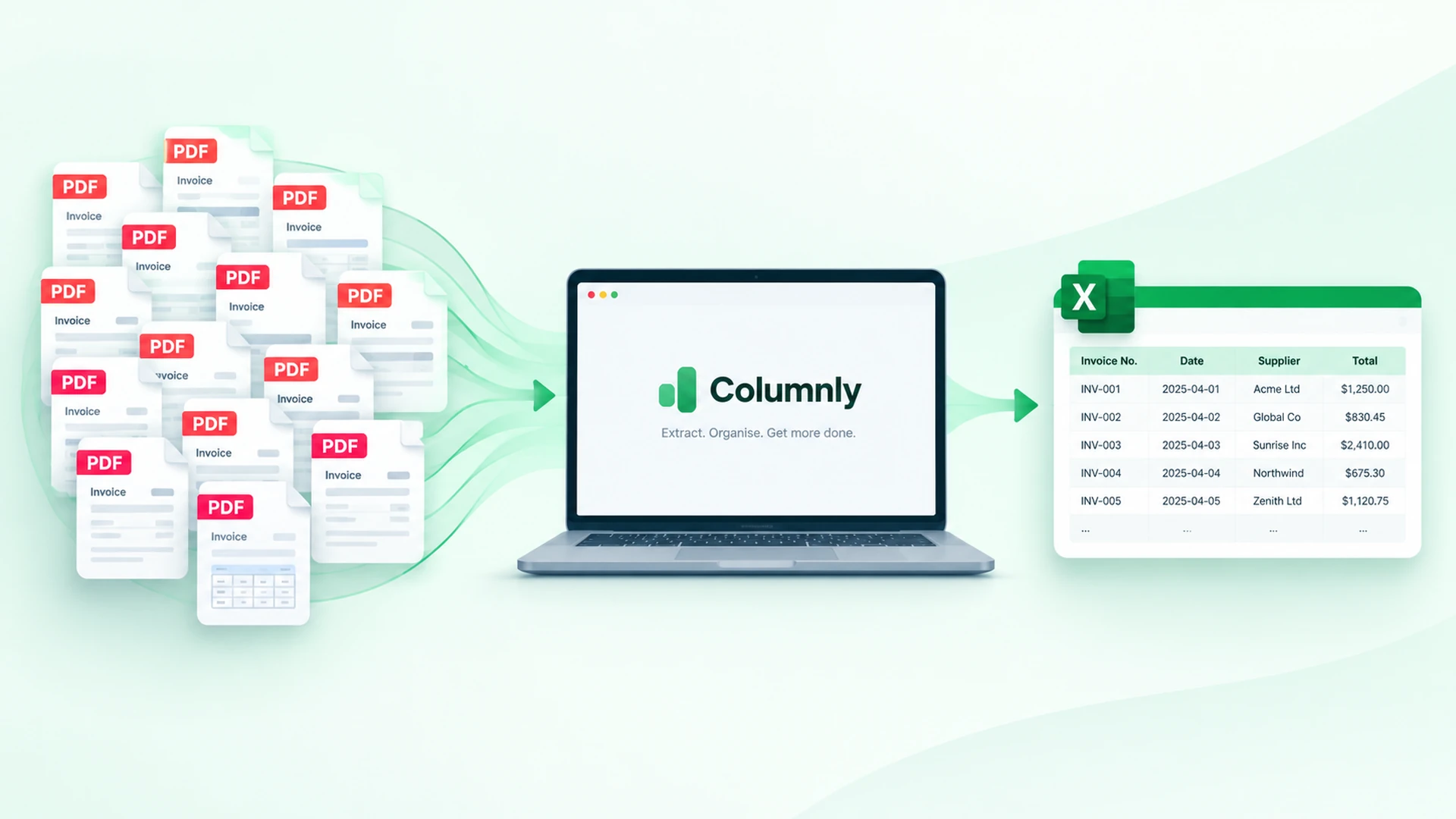
Imagine receiving 30 invoices from a supplier.
You need the invoice number, date and total amount from each document.
The process is familiar:
Open the first PDF. Find the fields. Copy them into Excel.
Close the PDF.
Open the next one.
Repeat.
Nothing about the task is particularly complicated. But the repetition is exhausting.
What if you could identify the required information once and apply those instructions to all 30 documents?
That's the purpose of batch PDF data extraction.
What does batch PDF to Excel conversion mean?
Batch conversion involves processing multiple PDF documents in a single operation.
But there's an important distinction between two different types of conversion.
Full document conversion attempts to transform the contents of each PDF into an Excel representation.
Selective data extraction retrieves only the fields or tables you actually need.
For example, you might have 30 PDF invoices but want only:
| File | Invoice number | Date | Total |
|---|---|---|---|
| Invoice-001.pdf | INV-001 | 01/11/2026 | $125.00 |
| Invoice-002.pdf | INV-002 | 02/11/2026 | $278.50 |
| Invoice-003.pdf | INV-003 | 03/11/2026 | $94.20 |
Instead of opening and manually processing each document, the goal is to obtain structured data from the entire batch.
The challenge with multiple PDFs
Batch extraction becomes more complicated when documents contain different layouts.
Invoice numbers may appear in different locations.
Tables may have different column structures.
Some reports may contain more pages than others.
A reliable extraction workflow needs to account for the structure of the documents being processed.
This is why reusable templates are particularly useful for recurring, similarly formatted PDFs.
How to extract data from multiple PDFs using Columnly
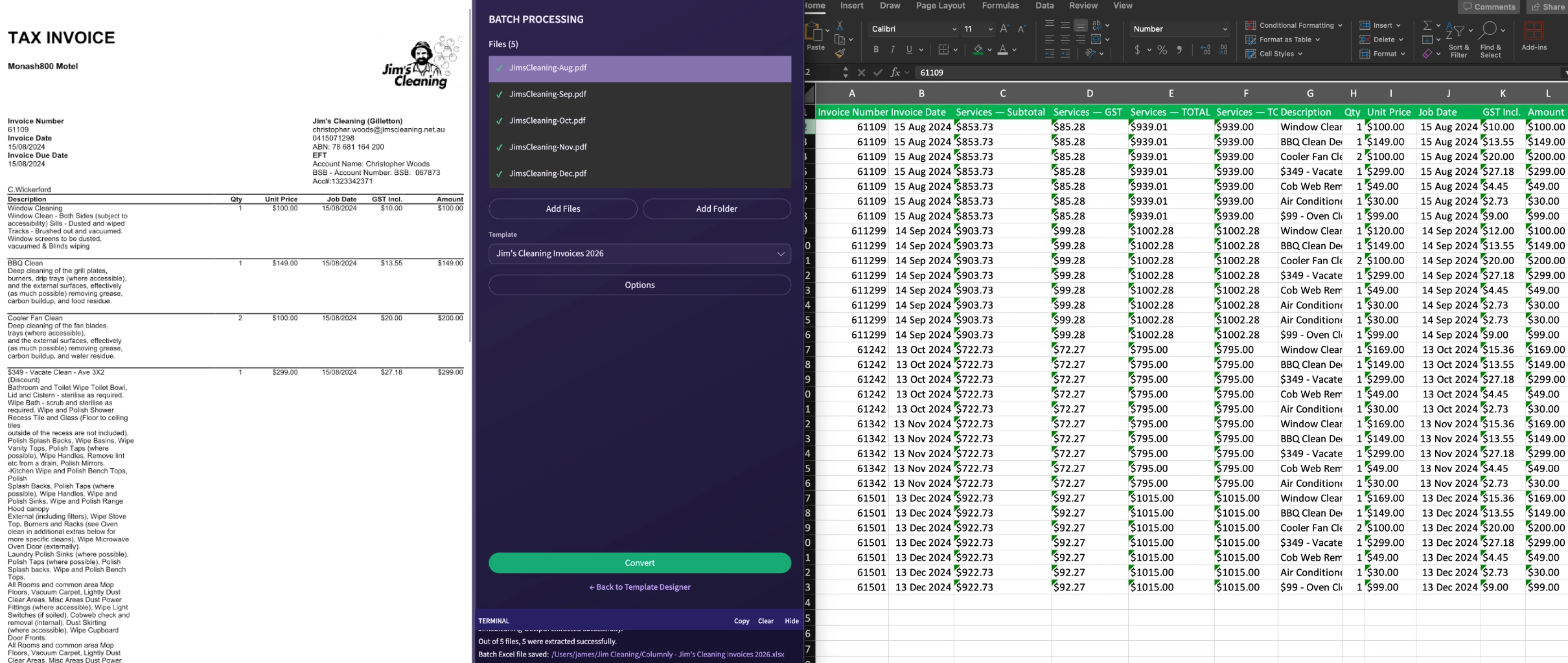
Columnly is an offline PDF extraction application for Windows and macOS.
It allows you to configure selected fields and tables, save the configuration and reuse it with compatible documents.
Step 1: Choose a representative PDF
Start with one document that represents the layout of the batch.
For example, choose a typical monthly invoice from a supplier.
Step 2: Select the required fields
Identify information such as:
- Invoice number
- Date
- Supplier
- Total amount
You can also configure repeating table extraction for documents containing itemised data.
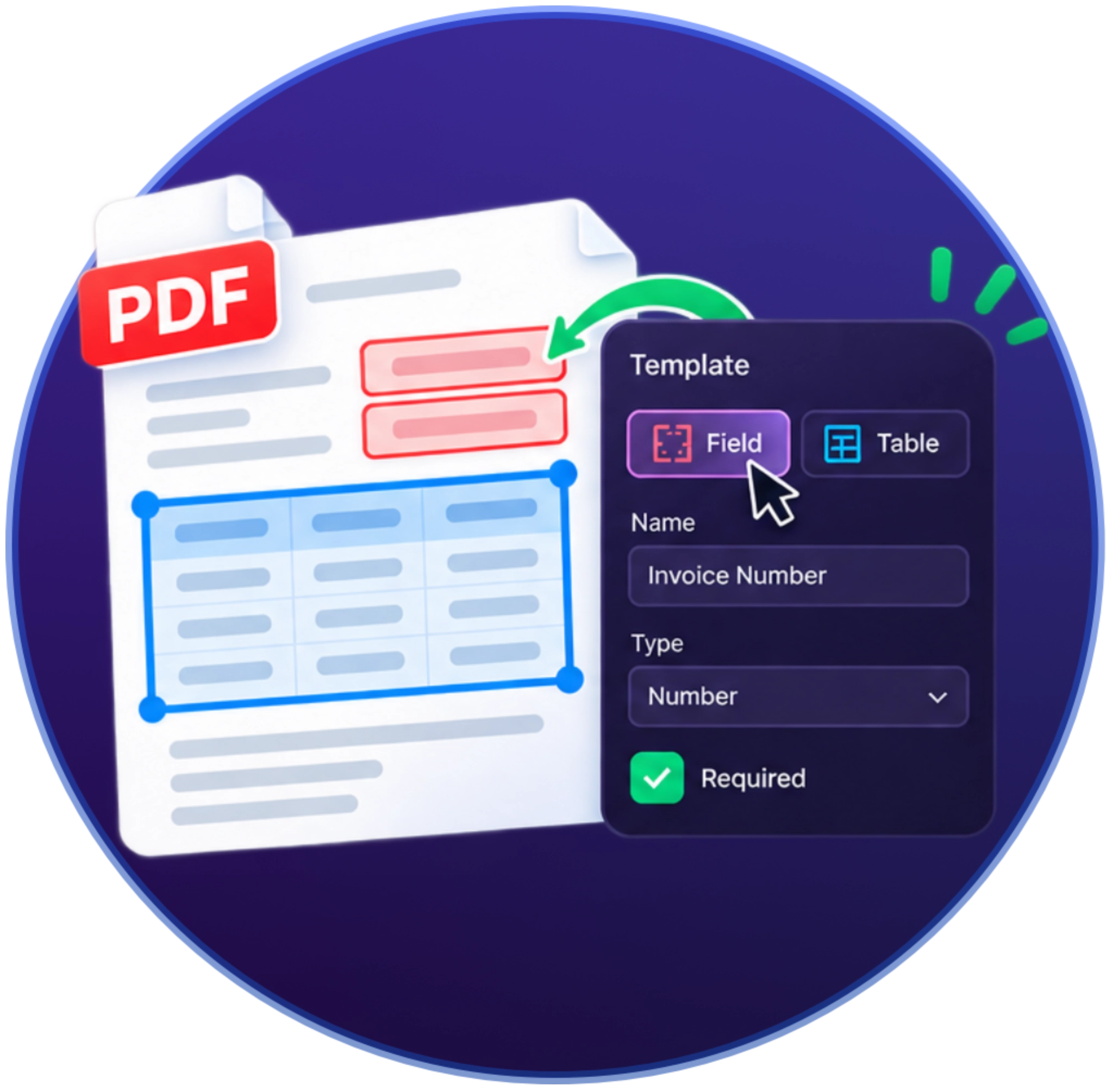
Step 3: Save the extraction template
Store the configured selections so you don't have to define them repeatedly.
Step 4: Add the remaining PDFs
Choose the additional documents you want to process.
For best results, use PDFs with layouts compatible with the saved extraction template.
Step 5: Run batch extraction
Apply the saved configuration to the batch.
Columnly extracts the configured information from the documents.
Step 6: Export the results
Export the extracted data to Excel or CSV.
You can then review, organise and analyse the results in your preferred spreadsheet application.
What happens if the PDFs have different layouts?
This is where it's important to understand how Columnly works.
Columnly does not use AI to automatically understand every possible document layout.
It uses reusable extraction configurations.
If you receive different invoice formats, you may need separate templates for those formats.
For example:
- Supplier A invoices → Template A
- Supplier B invoices → Template B
- Monthly financial reports → Template C
Once configured, these templates can be reused when similar documents arrive again.
Why not use an online batch converter?
Online converters can be convenient, especially for occasional documents.
But if you're processing invoices, financial statements or confidential business records, uploading those files introduces another consideration.
Who processes them, where they're stored and what happens to uploaded copies depend on the service provider.
Columnly keeps the extraction process on your own computer.
No cloud upload is required.
Can Columnly process scanned PDFs?
Not in its current version.
Columnly is designed for text-based PDFs containing extractable text.
Scanned documents and image-only PDFs require OCR, which Columnly does not currently provide.
For documents with substantially different or unpredictable structures, a more advanced document-processing solution may be necessary.
A small improvement that adds up
Extracting information from one PDF may save only a few minutes.
But repetitive work has a way of accumulating.
When the same task happens every week or every month, the value comes from not having to start from scratch each time.
Configure the extraction once. Reuse it when the next batch arrives.
Try Columnly free for 7 days, with no credit card required.
Download for Windows or macOS at columnly.app.