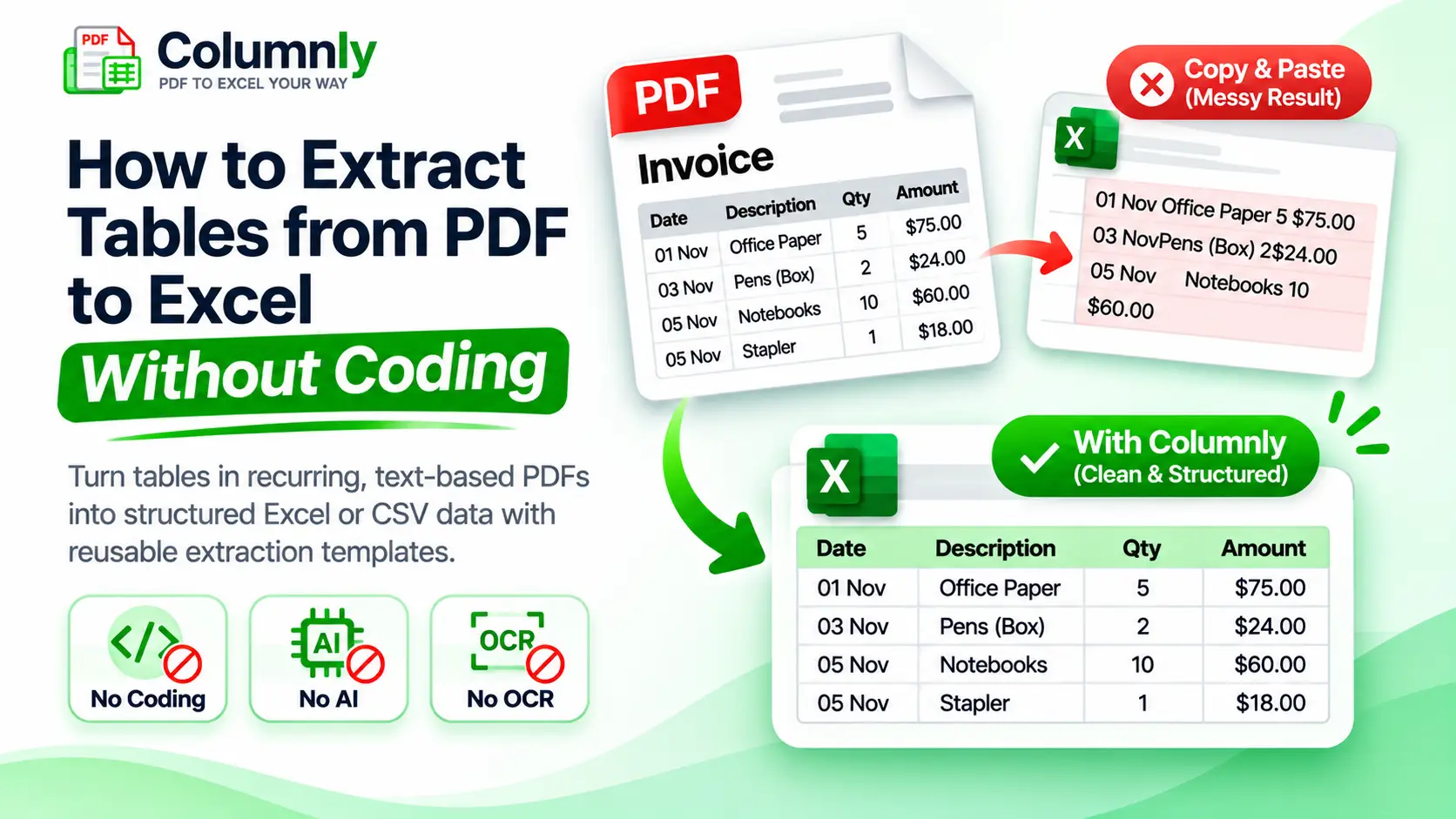
A table that looks perfect in PDF can become a mess in Excel
You've found exactly the information you need.
It's arranged neatly in a PDF table, with columns for dates, descriptions, quantities and amounts.
You select it, copy it and paste it into Excel.
But instead of a clean spreadsheet, you get broken columns, missing spaces or multiple values crammed into individual cells.
Now you're spending time cleaning up data that looked perfectly organised seconds earlier.
The problem isn't the data. It's the way PDF documents represent it.
Why is extracting PDF tables difficult?
A PDF primarily describes how content should appear on a page.
The visual arrangement doesn't necessarily translate into an Excel table with properly defined rows and columns.
This creates several common problems:
- Multiple columns become merged together.
- Information appears in the wrong cells.
- Headers are repeated between pages.
- Tables continue onto additional pages.
- Totals and footers are mistaken for regular table rows.
Simply copying the visible text may not preserve the structure you need.
Three approaches to PDF table extraction
1. Manual copying
For a very small table, manual copying may be sufficient.
The problem increases with table size and complexity.
2. Programming tools
Libraries such as Tabula, Camelot and other PDF-processing tools can extract tables programmatically.
These can be useful for developers and analysts who are comfortable working with extraction configurations or code.
But learning a programming workflow just to extract a recurring business table may be unnecessary.
3. Visual table extraction software
Columnly lets you identify the table you want through a desktop interface.
Rather than writing extraction scripts, you configure the relevant document region and table structure visually.
How to extract PDF tables using Columnly
Step 1: Open your PDF
Choose a text-based PDF containing the table you want to extract.
Examples include transaction listings, invoice line items, financial reports and recurring business documents.
Step 2: Select the table
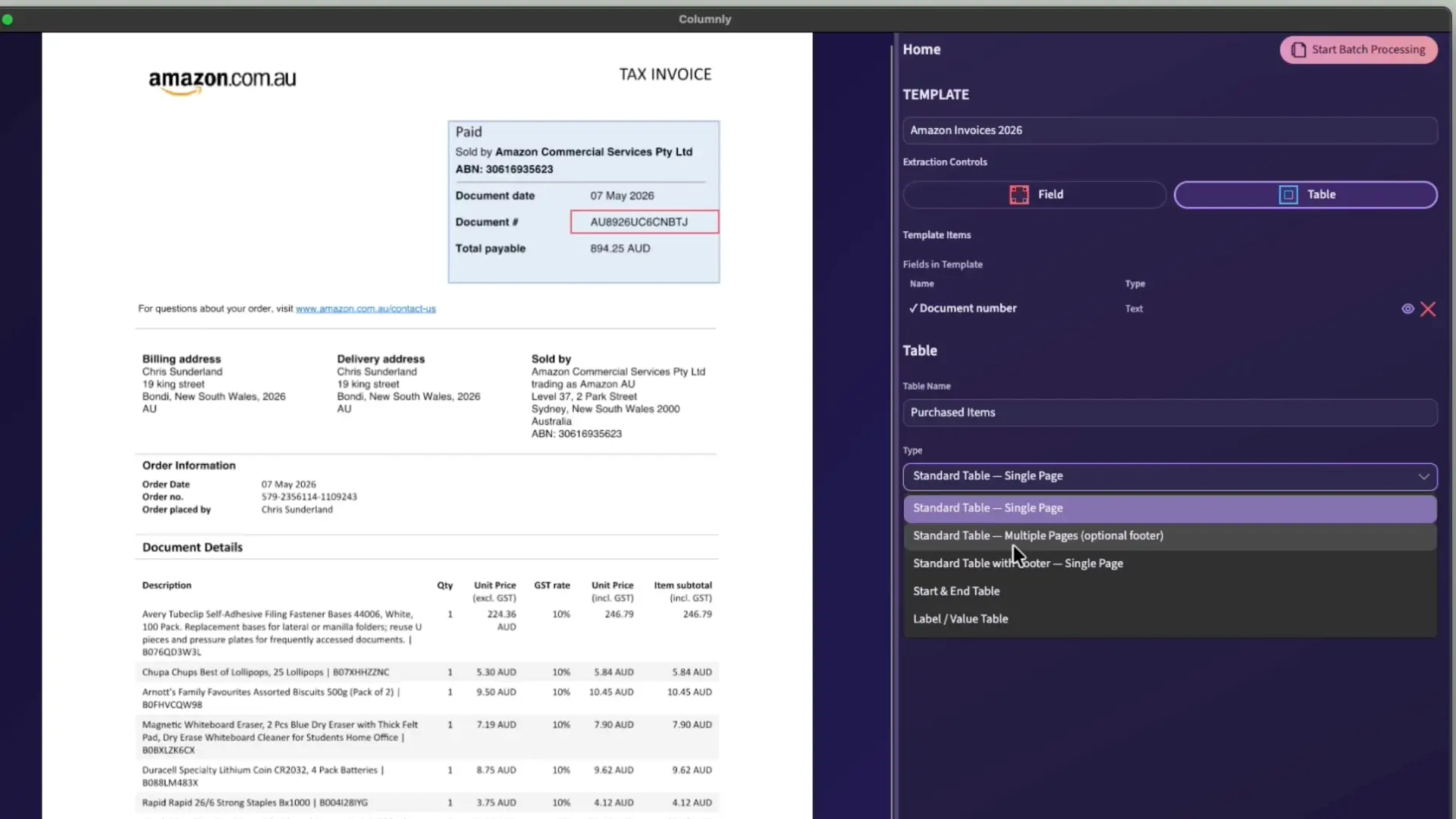
Use Columnly's table selection tools to identify the relevant region.
Configure the columns and extraction settings for your document.
Step 3: Handle repeating rows
Columnly supports extracting multiple rows from a table rather than treating the entire table as one field.
Step 4: Configure multi-page tables where needed
Some reports contain tables that continue across several pages.
Columnly supports multi-page table extraction, including workflows involving repeated headers.
The appropriate configuration depends on the document structure.
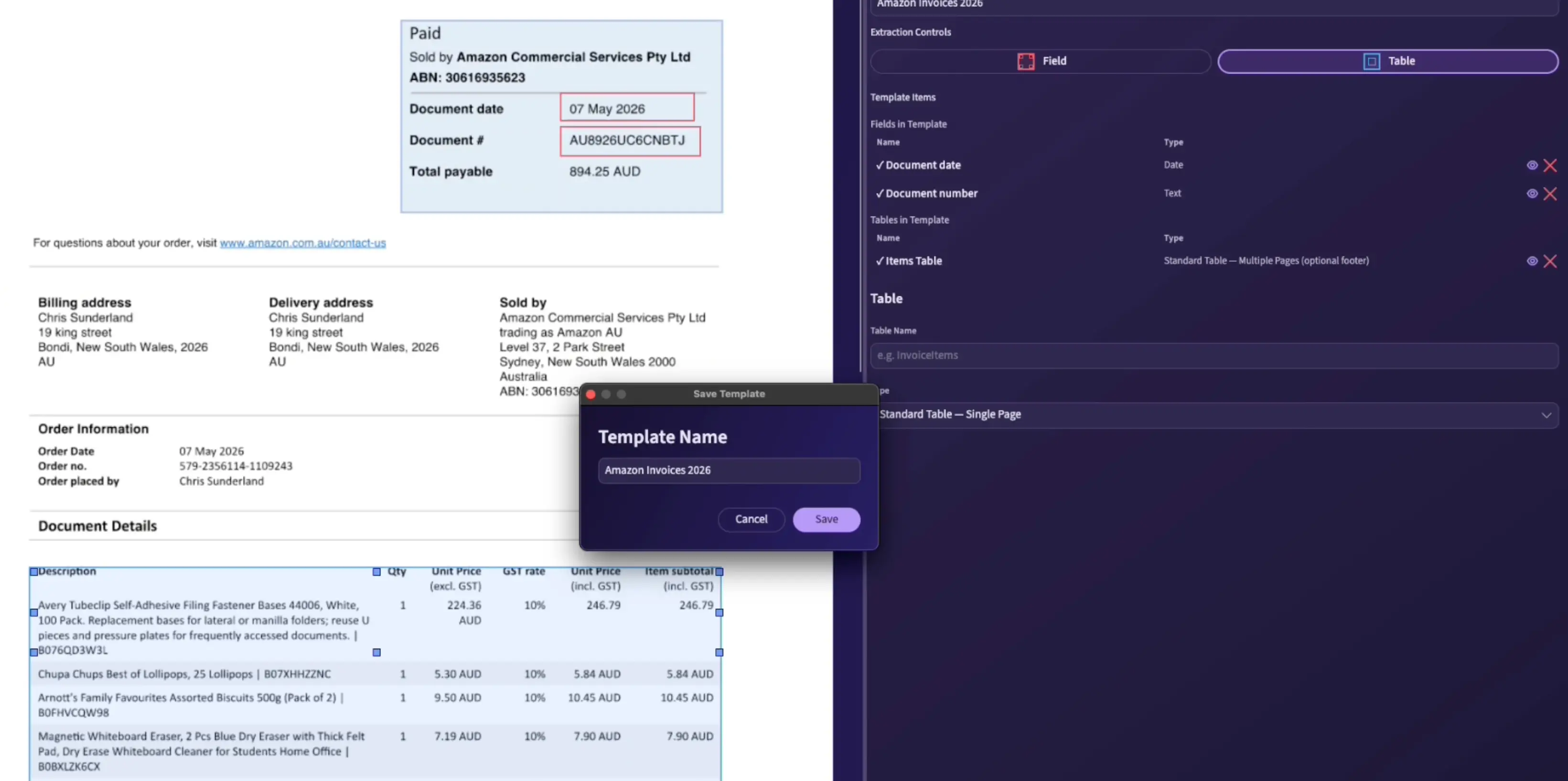
Step 5: Save the template
If you regularly receive documents with the same layout, save your extraction settings for future use.
Step 6: Export the extracted table
Export the results as an Excel spreadsheet or CSV file.
Review the output before relying on it for calculations or financial decisions.
Extract specific information, not everything
A PDF might contain several tables, paragraphs, addresses, notes and other content.
You may need only one particular table.
Or perhaps you need a table together with a few document fields.
Columnly is designed around selective extraction.
You decide which information matters rather than converting the entire document indiscriminately.
For recurring reports, this can make subsequent data processing considerably more manageable.
What types of tables work best?
Columnly is intended for text-based documents with identifiable table structures.
Examples include:
- Invoice line-item tables
- Transaction listings
- Supplier reports
- Recurring financial tables
- Multi-page reports with consistent columns
Irregular layouts may require additional configuration and testing.
Image-only or scanned PDF tables are not currently supported because Columnly does not include OCR.
Keep the original document private
Some PDF conversion services require uploading your document to a website.
Columnly extracts the information locally on your Windows or Mac computer.
That means you can work with sensitive business records without sending them to a remote conversion service.
Spend your time analysing the data, not repairing it
The value of extracting a table isn't simply getting text out of a PDF.
It's turning that information into structured data you can actually use.
If you're repeatedly working with similar PDF tables, reusable extraction templates can eliminate much of the repetitive setup.
Try Columnly free for 7 days.

Explore PDF table extraction at columnly.app.