You shouldn't have to copy the same information every day
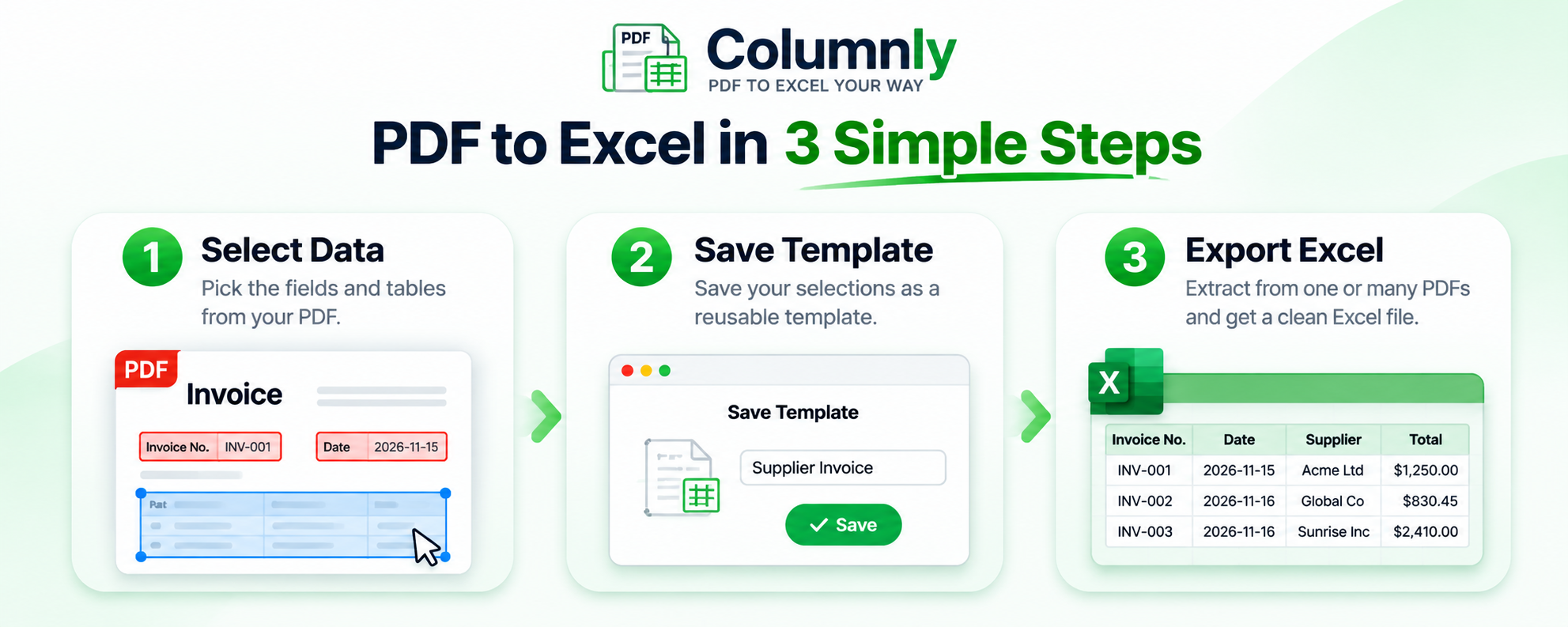
Another invoice arrives. You open it, find the invoice number, copy the date, copy the amount, and enter everything into Excel.
Then another invoice arrives.
And another.
By the end of the week, you've repeated the same process dozens of times.
The frustrating part isn't that the work is particularly difficult. It's that you're doing something a computer should be able to repeat.
What if you could identify the information you need once and reuse those instructions whenever similar PDFs arrive?
That's the idea behind automated PDF data extraction.
What is automated PDF data extraction?
PDF data extraction is the process of retrieving information from PDF documents and turning it into structured data.
For example, an invoice might contain:
- Invoice number
- Invoice date
- Supplier name
- Total amount
- A table of purchased items
Instead of manually typing this information into a spreadsheet, extraction software collects the relevant values and exports them into Excel or CSV.
The challenge is that PDF documents are designed primarily for presentation, not structured data exchange.
The information may look perfectly organised on the page, but retrieving it reliably can require more than simply copying and pasting.
Do you need AI to automate PDF extraction?
Not necessarily.
AI-powered extraction is useful for complex documents with inconsistent structures.
But many businesses repeatedly receive documents with similar layouts.
Think of monthly supplier invoices, recurring bills, financial statements or standardised reports.
For these situations, reusable extraction templates offer a different approach.
You identify the fields and tables you want, save the extraction configuration and apply it to similar documents.
No AI prompts, cloud processing or programming scripts are required.
How to automate extraction using Columnly
Columnly is an offline PDF-to-Excel desktop application for Windows and macOS. It lets you visually select the information you want to extract.
Step 1: Open a sample PDF
Choose a representative text-based PDF document, such as an invoice you receive regularly.
Step 2: Select the information you need
Identify individual fields such as invoice number, date and total amount.
You can also select repeating tables containing multiple rows of information.
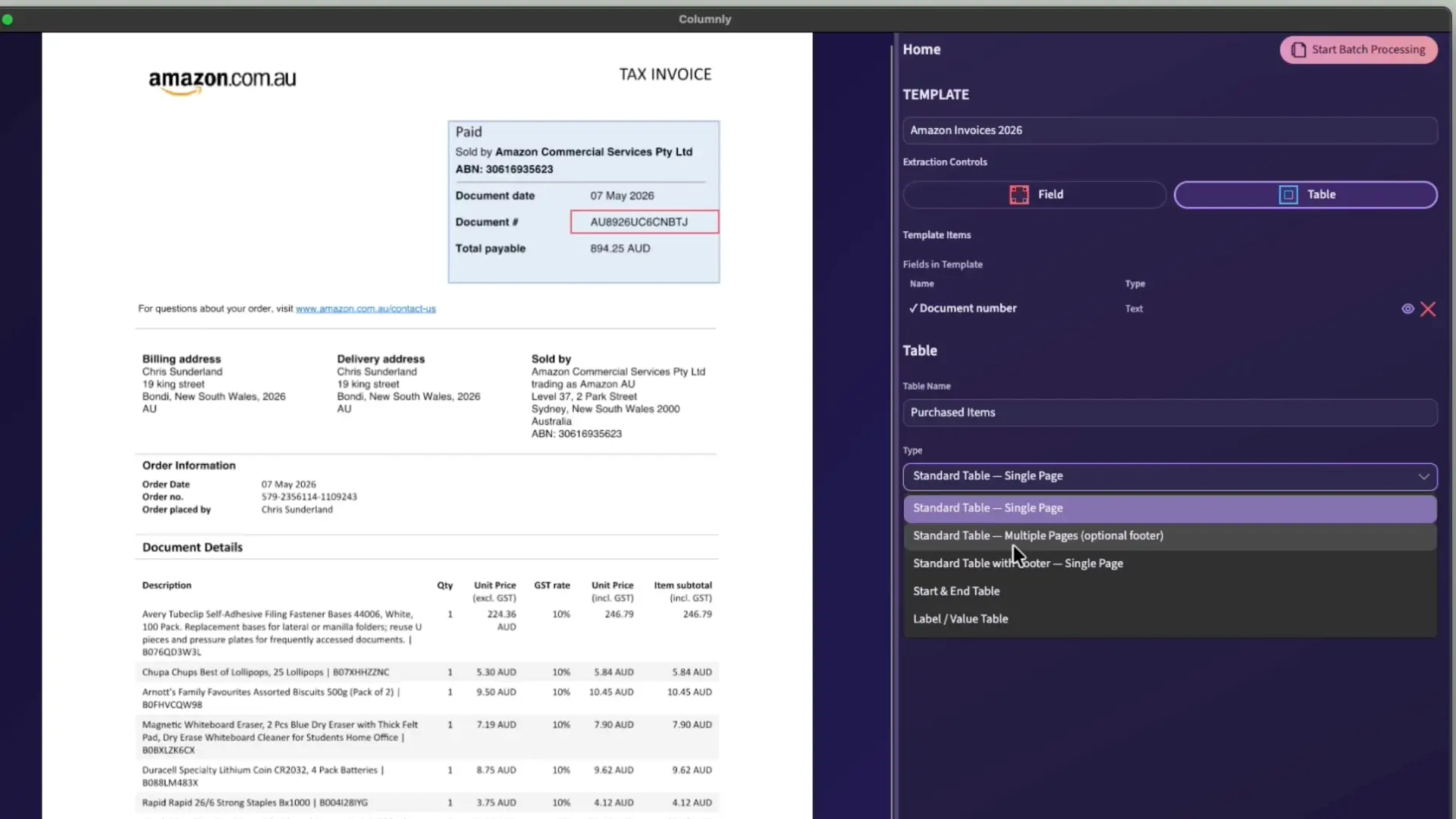
Step 3: Save your extraction template
Save the configuration so you don't need to recreate the selections each time.
Step 4: Process similar documents
Use the saved template to process additional PDFs with compatible layouts.
Columnly supports batch extraction, allowing you to handle multiple documents in one workflow.
Step 5: Export to Excel or CSV
Export the extracted information into a structured spreadsheet ready for further analysis.
What makes offline extraction different?
Many online PDF services require uploading documents to remote servers.
For routine documents, this may be acceptable.
But invoices, financial reports and customer records can contain information you'd rather keep on your own computer.
Columnly processes PDFs locally.
Your documents don't need to leave your device just to become spreadsheet data.
It also works without an internet connection for the extraction itself.
Important limitations
Columnly is designed for text-based PDF documents.
It does not currently perform OCR, which means scanned or image-only PDFs are not supported.
Reusable templates work best when documents follow predictable layouts. Significant layout changes may require adjustments to your template.
Columnly is also an extraction tool, not a full accounting automation system.
Stop repeating the work you've already taught a computer
If you regularly extract the same information from similar PDFs, reusable templates can reduce repetitive manual work.
The goal isn't to introduce another complicated system.
It's to turn a task you perform repeatedly into a process you configure once and reuse.
Try Columnly free for 7 days.
Explore offline PDF data extraction for Windows and macOS at columnly.app.